
If you work in finance or accounting, the month-end close often involves a tedious ritual: manually downloading foreign exchange (FX) rates, pasting them into a spreadsheet, and restating your balances.
Not only is this time-consuming, but it introduces the risk of human error. Did you pull the rate for the 30th or the 31st? What if the 31st was a Sunday?
In this tutorial, we will automate this entire process using Power Query and the European Central Bank (ECB) XML feed. By the end of this guide, you will have a dynamic report that pulls the exact month-end rate and the Year-To-Date (YTD) average rate based on a single date parameter you control.
Step 1: Locate the XML Data Source
First, we need to bypass the manual "Download CSV" button and connect directly to the data stream.
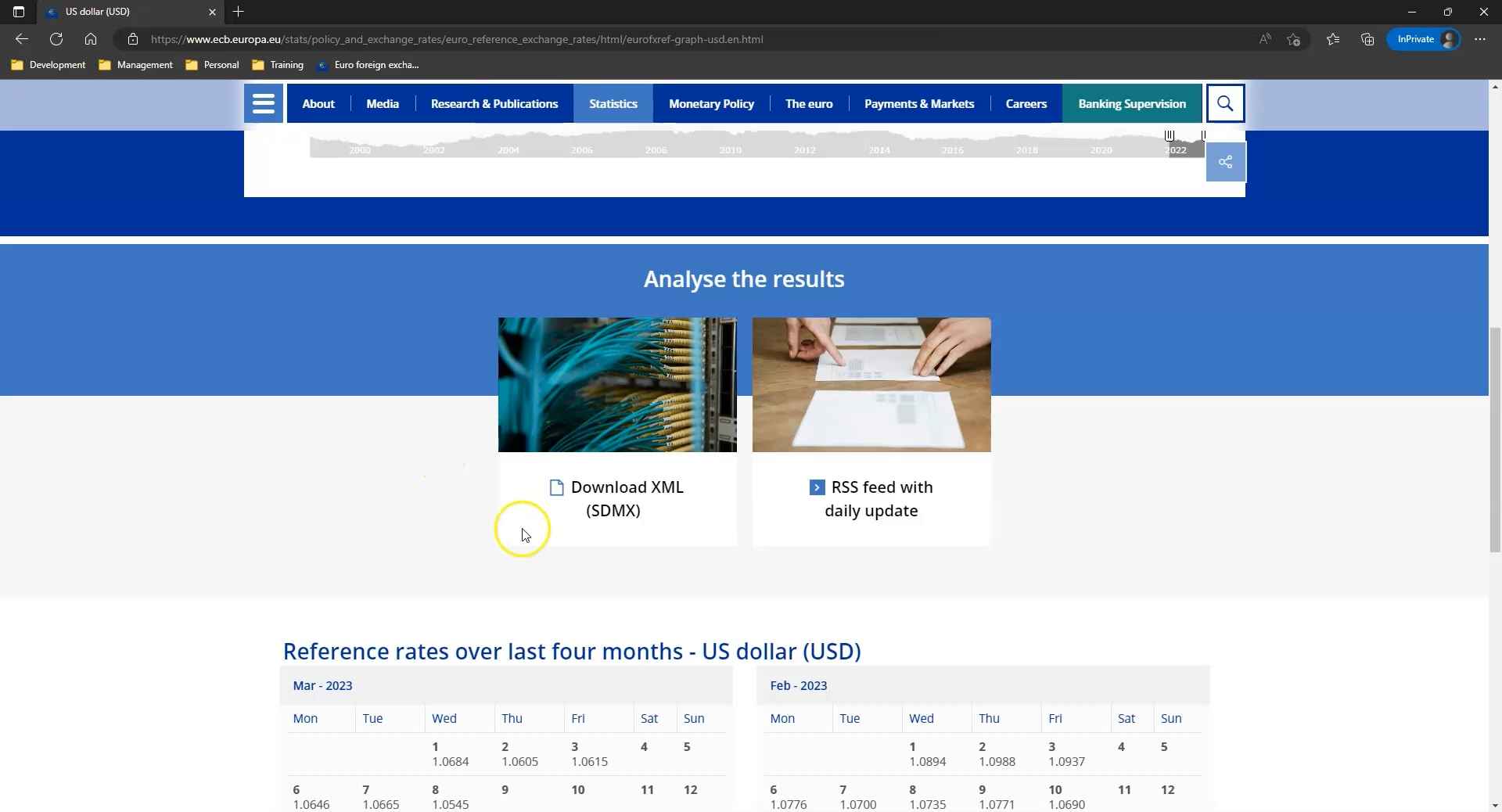
- Navigate to the ECB Euro foreign exchange reference rates page.
- Select the currency you need (e.g., US Dollar).
- Scroll down to the "Analyze the results" section and look for XML (SDMX).
- Right-click the link and select Copy Link Address.
Step 2: Import Data into Power Query
Now we bring that live feed into Excel.
- Open Excel and go to the Data tab.
- Select Get Data > From File > From XML.
- Paste the URL you copied from the ECB website into the file name box and click Open.
Power Query will interpret the XML structure. You will likely see a nested structure (Envelope > Cube > Exchange Rate).
- Click Table inside the columns to drill down until you see the Series data.
- Click the Expand icon (two arrows) on the column header to reveal the attributes. Select
TIME_PERIOD(Date) andOBS_VALUE(Rate).
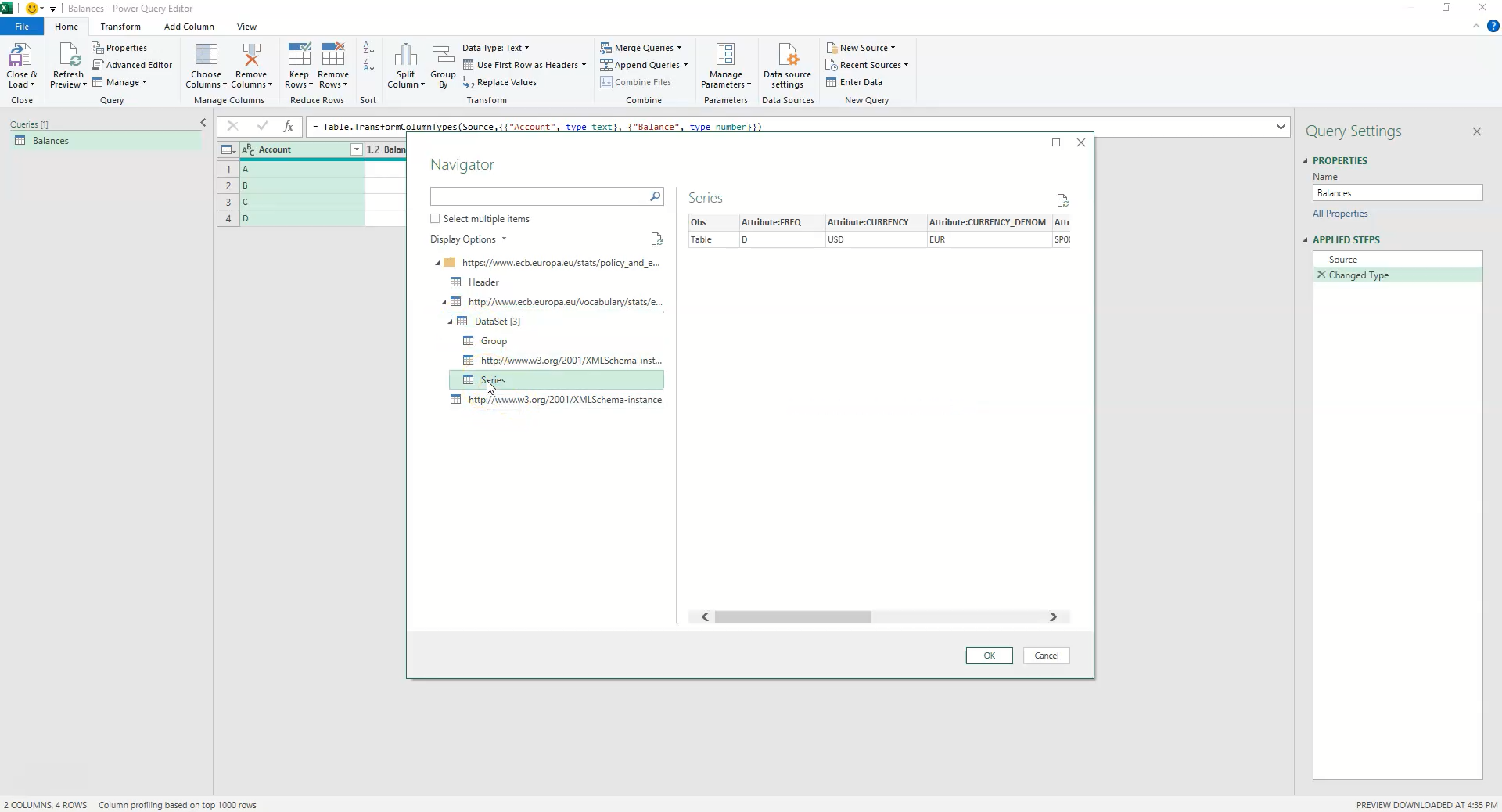
Once expanded, rename your columns to "Date" and "Rate," and ensure you set the Data Types correctly (Date for the date column, Decimal Number for the rate). Name this query "Rates".
Step 3: Create a Dynamic Parameter
To make this report reusable, we shouldn't hard-code dates. We will create a parameter.
- In the Power Query Editor, go to Manage Parameters > New Parameter.
- Name it
Closing Date. - Set the Data Type to Date and enter your desired reporting date (e.g., 2/28/2023) as the current value.
Step 4: Scenario A - Fetching the Month-End Rate
This is where many analysts get stuck. The ECB does not publish rates on weekends or holidays. If you filter your data to equal "February 28th" and that date falls on a Sunday, your query will return a blank error.
The Solution: The "Top 1" Method
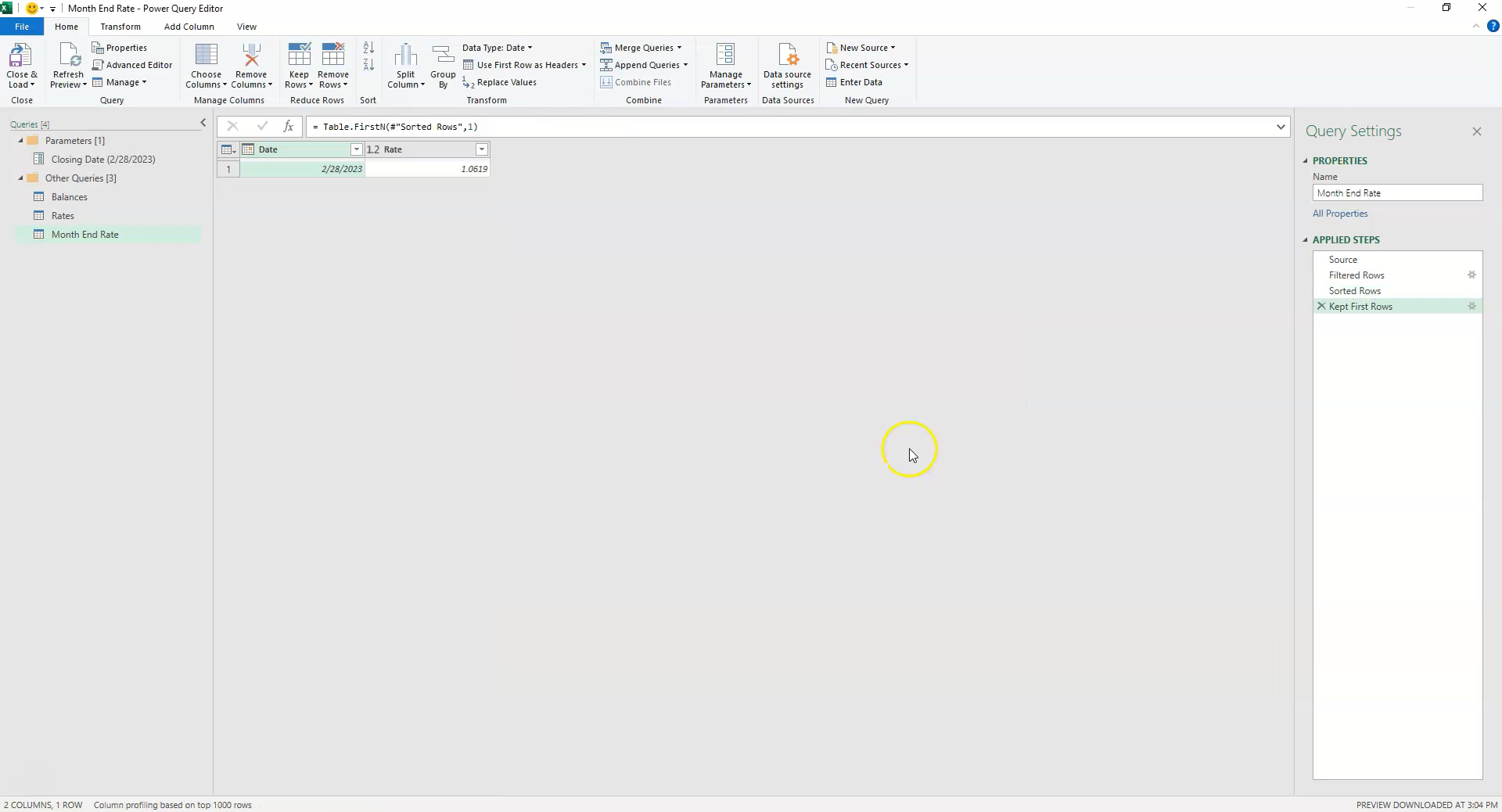
- Right-click your base "Rates" query and select Reference. Name this new query "Month End Rate".
- Filter the Date column using Date Filters > Is Before or Equal To.
- In the logic box, click the icon to switch from a specific date to a Parameter, and select
Closing Date. - Sort the Date column Descending (newest to oldest).
- On the Home tab, select Keep Rows > Keep Top Rows and enter
1.
Why this works: By filtering for dates before your target and sorting descending, the first record will always be the most recent available trading day. If the 31st is a Sunday, this logic automatically grabs the rate from Friday the 29th.
Step 5: Scenario B - Calculating the YTD Average Rate
For income statement accounts, you often need the average rate for the current year up to the reporting date.
- Right-click the "Rates" query again and select Reference. Name it "YTD Average Rate".
- We need to filter this list for only dates occurring in the same year as your
Closing Dateparameter. - Apply a generic "Date Filter" (e.g., This Year). Then, look at the formula bar. We need to modify the M-Code to reference our parameter dynamically.
The M-Code Logic: Replace the hardcoded year logic in the formula bar with this:
each Date.Year([Date]) = Date.Year(Closing Date)
-
Date.Year([Date]): Extracts the year from your data column. -
Date.Year(Closing Date): Extracts the year from your parameter. - Result: This filter keeps all rows where the data year matches your reporting year.
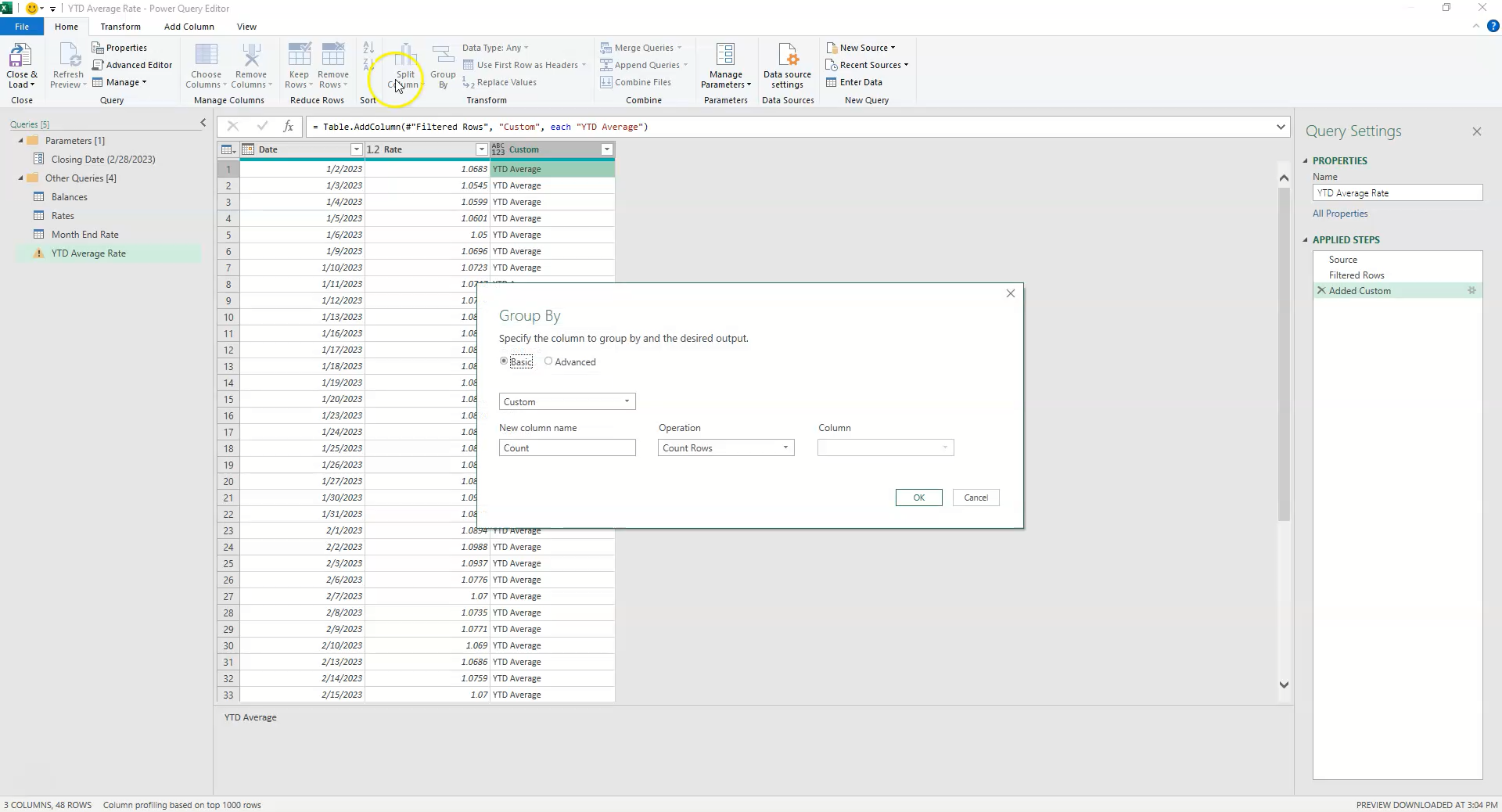
- Go to Transform > Group By.
- Create a new column called "Average Rate" and set the Operation to Average based on the Rate column.
Conclusion
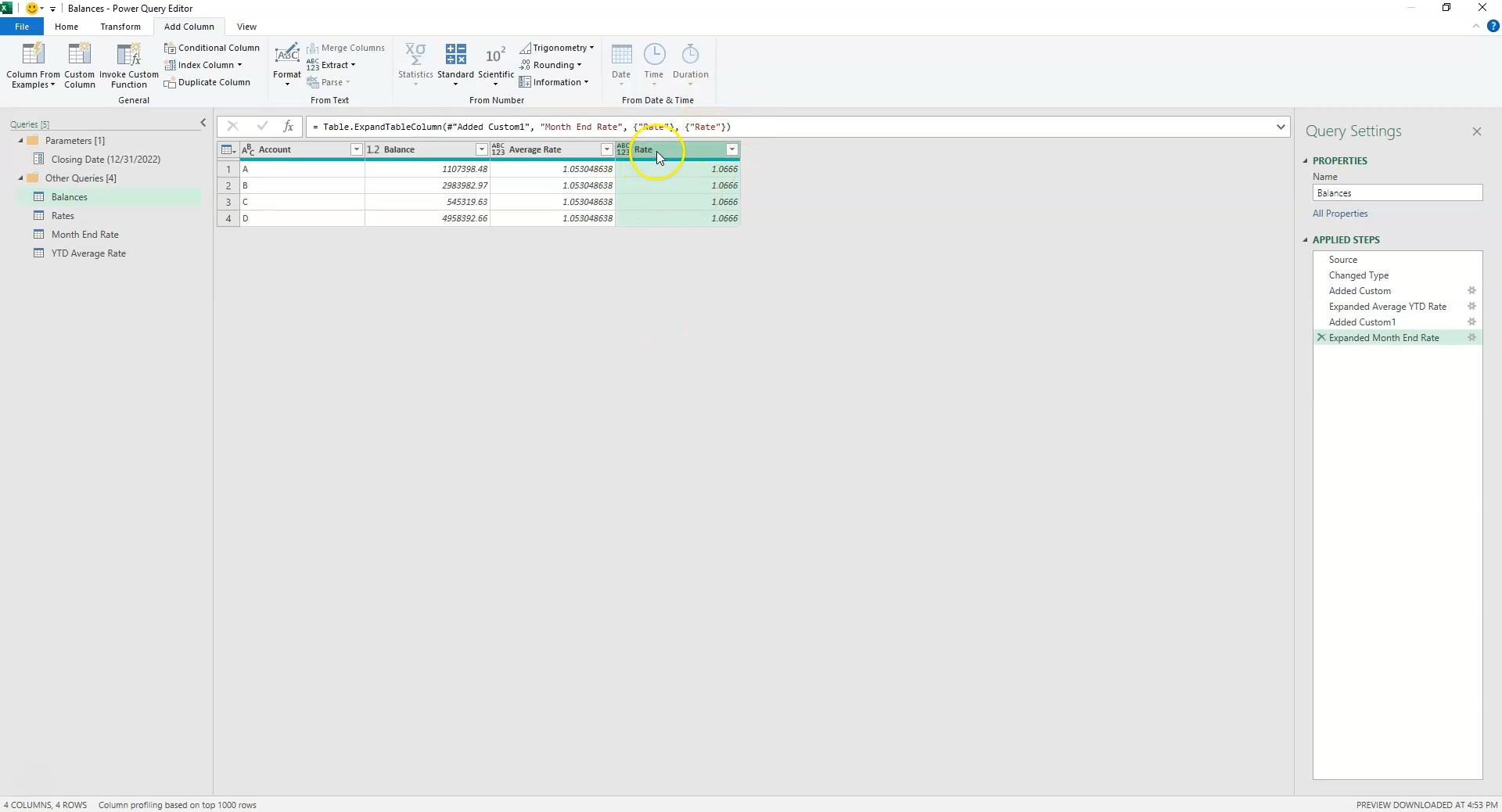
By merging these queries back into your main balances table, you now have a fully automated FX conversion tool. When next month rolls around, simply update the Closing Date parameter and refresh.
Common Errors to Avoid
-
Privacy Levels: When combining data from the web (ECB) with local parameters, Power BI/Excel may trigger a Privacy Level firewall.
- Fix: Go to File > Options and Settings > Query Options > Privacy and select "Ignore the Privacy Levels..." for this specific file if safe to do so.
-
Hard-Coding Dates: Avoid using the standard "Year to Date" filter in the dropdown menu if you are reporting on historical periods. Always reference your
Closing Dateparameter so you can go back in time easily. - Data Types: XML data often imports as Text. Ensure you explicitly change the Rate column to "Decimal Number" before attempting to average it, or the calculation will fail.
Need help automating your financial reporting? At Judith Creek, we specialize in moving businesses away from fragile manual spreadsheets toward robust, automated data solutions. Whether it's Power BI reporting or Strategic Data Consulting, we can help you trust your numbers again.